How to make a great narrated explainer video with AI
Kario Team · September 19, 2026 · 7 min read
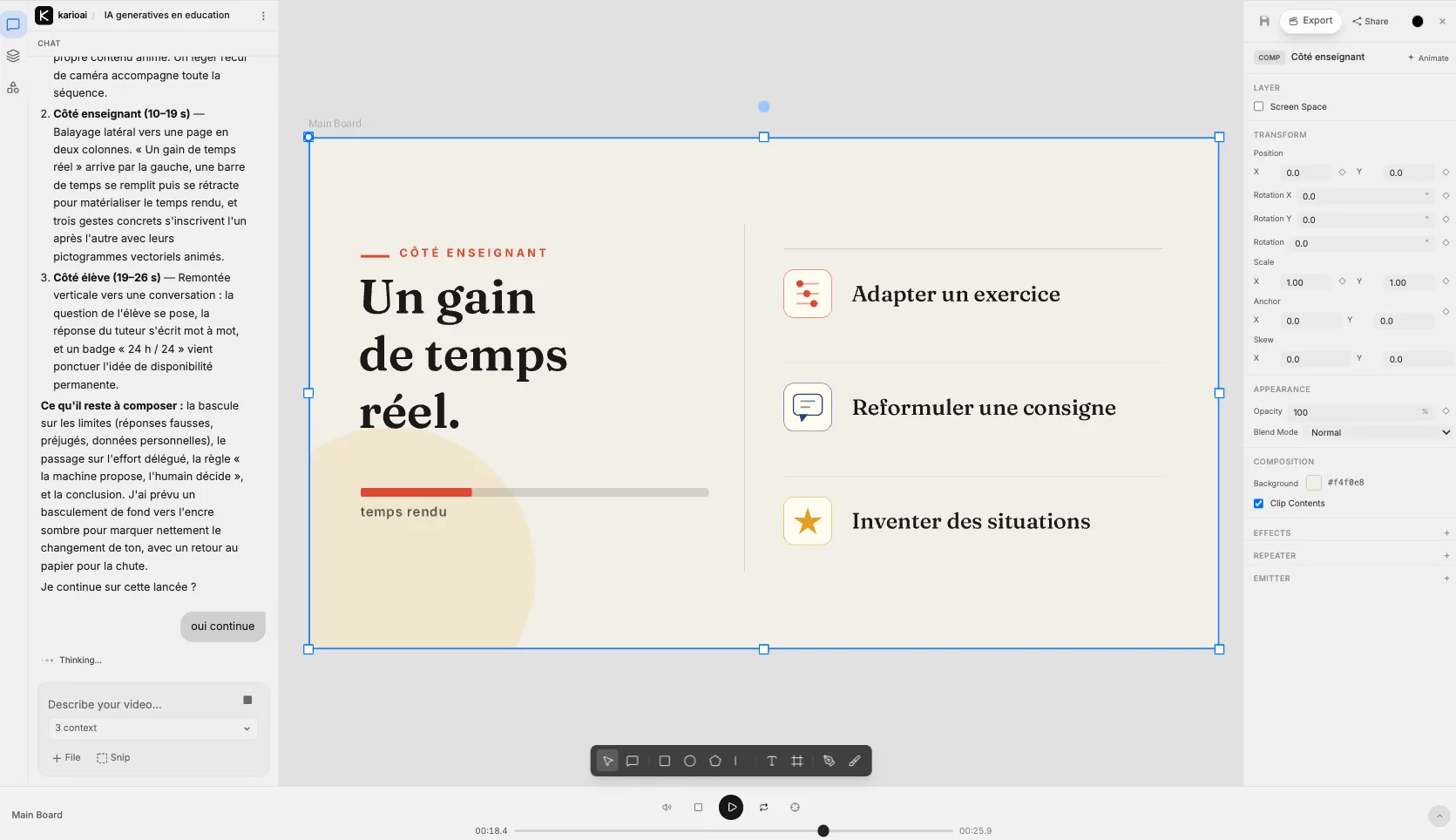
An explainer video used to mean a script, a voice actor, a motion designer and a few weeks. With Kario you can have a narrated, animated minute in an afternoon, and still control every frame.
The more of your thinking you put in, the more the video sounds like you. This guide shows how to brief Kario and steer it to a video you're proud to share, using a real project: a one-minute French explainer on generative AI in schools.
Step 1: Write a brief, not a topic
The example project started from a single line:
Les IA génératives en éducation, usages et limites. (Generative AI in education: uses and limits.)
Kario can build a complete video from a line like that, filling in the audience, the angle and the examples itself. When those choices matter to you, put them in the brief. Five more lines make the video yours:
- Who is watching. "Secondary-school teachers who are curious but wary" leads to different examples, tone and vocabulary than "school administrators."
- The one thing they should remember. Write the takeaway as a sentence. Everything else in the video should build toward it.
- The shape of the argument. List the beats you want, in order. For an explainer: the hook, what it does for each audience, the catch, the takeaway.
- The facts only you have. Real numbers, quotes, product names, your own examples. They're what makes a video credible.
- Length, format, language and voice. "60 seconds, 16:9, French, calm female narrator" settles four decisions up front.
The same topic as a brief:
A 60-second narrated explainer in French, 16:9, for secondary-school teachers who are curious about generative AI but wary of it. Takeaway: "The machine proposes, the human decides." Beats: what the tools produce; time saved for teachers (lesson plans, feedback, differentiation); an always-available tutor for students; the catch (wrong answers, inherited bias, exposed data); why skipping the effort skips the learning; the takeaway. Calm, clear, no hype.
Step 2: Bring your own material
Your own material makes the video unmistakably yours. Before you send the brief, add what you already have:
- Brand. Your colours, fonts and logo, so the video looks like you from the first frame instead of after ten rounds of edits.
- Screens and images. Attach them with + File, or grab part of your screen with Snip. Real product screens beat illustrations of screens.
- Source content. Paste a URL so Kario works from your page's facts and wording.
Step 3: Choose the direction deliberately
Before animating anything, Kario proposes a format and asks how the video should look. For the example project it suggested a narrated explainer of 60 to 75 seconds in 16:9, with three directions:
- A. Modern blackboard. Slate background, chalk lines, diagrams that draw themselves.
- B. Data lab. Indigo night, grids, particles, cyan and magenta accents.
- C. Paper & ink. Cream background, editorial print shapes, clear rhythmic motion.
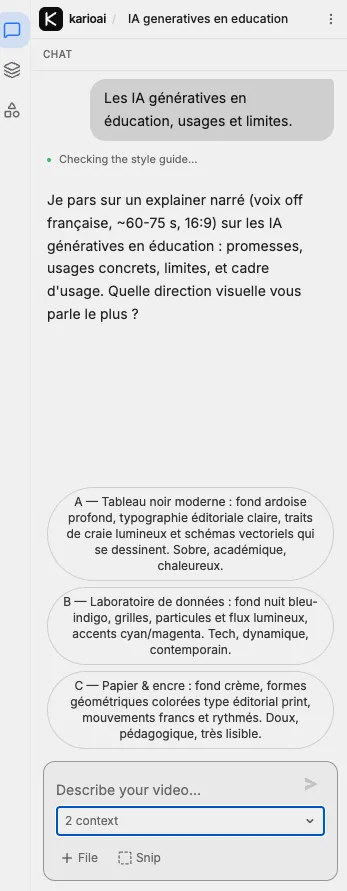
This is the biggest decision in the project, since fonts, colours and motion all follow from it. Choose for the audience, not for yourself: teachers suit paper and ink; developers might suit the data lab. If none fits, don't settle. Reply with what you want, or combine them: "paper and ink, but in our brand colours."
Step 4: Approve the script before anything moves
The voiceover sets the video's timing: in this project, a calm French voice ran 59.9 seconds, so the video is 59.9 seconds. Changing the words after the animation is built means retiming everything that follows, so the script is the cheapest place to make the video better.
Ask Kario to show you the script before it records the voiceover, then check:
- One idea per scene. If a scene needs two sentences of narration to explain, split it or cut it.
- Length. Narration runs at roughly 150 words a minute. A 60-second video has room for about 150 words, fewer if you want pauses.
- Accuracy. Every claim and number is one you'd stand behind.
- The ending. It lands on your takeaway, not a summary of everything.
Step 5: Steer while it builds
Kario builds the video one movement at a time, timed to the narration, and reports as it goes: the design system it settled on, which scenes are built, and what's left.
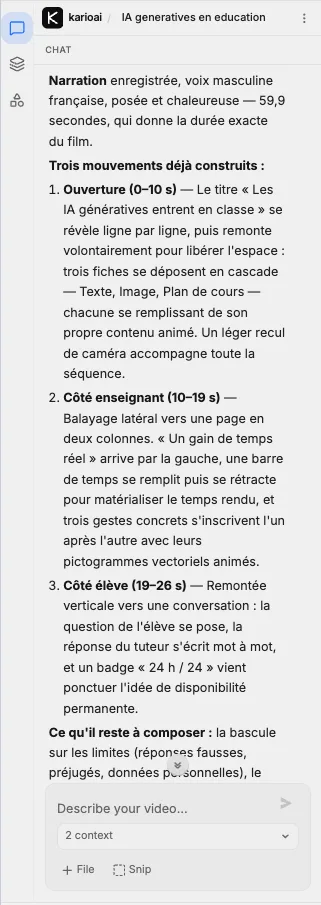
Read these updates. A note on scene two costs a sentence; the same note after the whole video is built costs a rebuild. If it's on track, "continue" is enough.
The finished structure followed the beats of an explainer:
1. Hook. A title that states the change, plus a quick picture of what the tools produce.
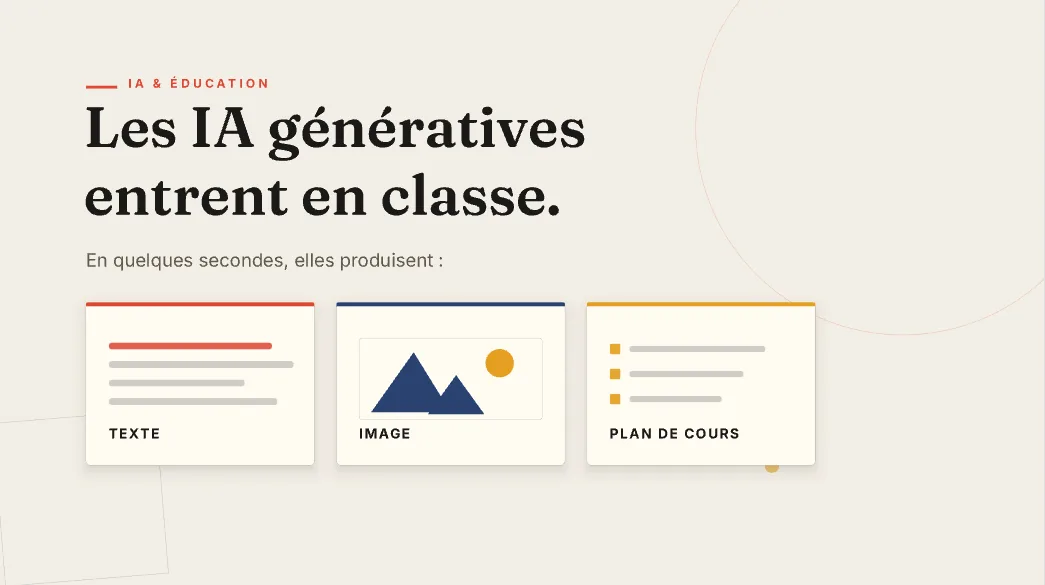
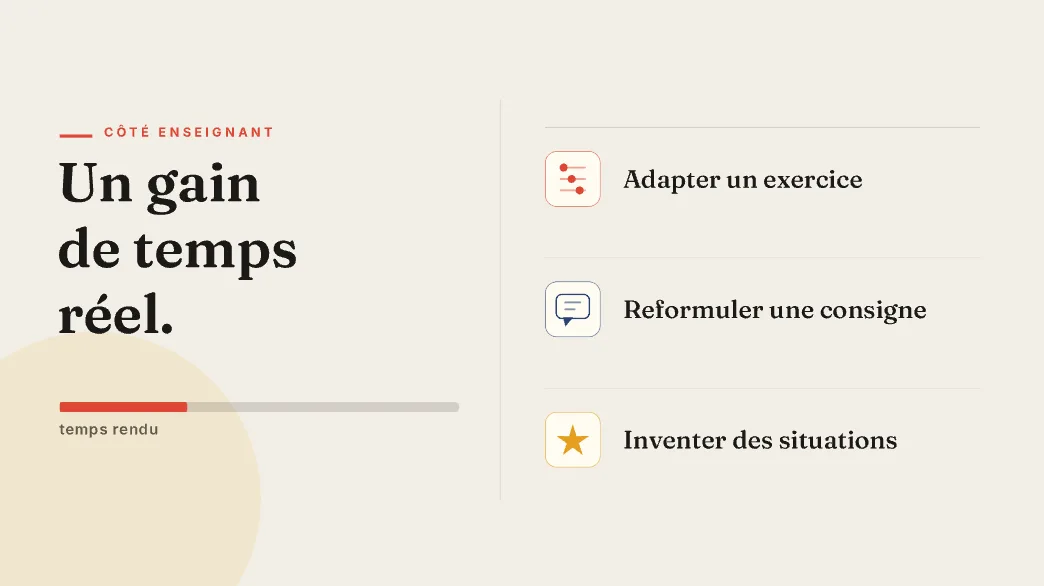
2. Benefit for the first audience. For teachers, time given back, shown with a filling bar and three concrete uses.
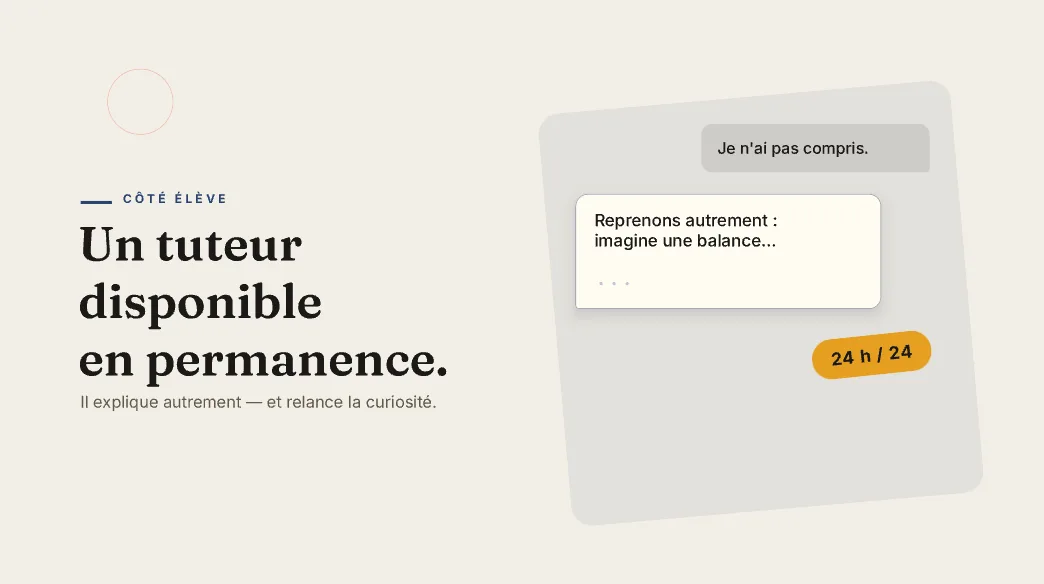
3. Benefit for the second audience. For students, a tutor that's always available, shown as a live conversation.
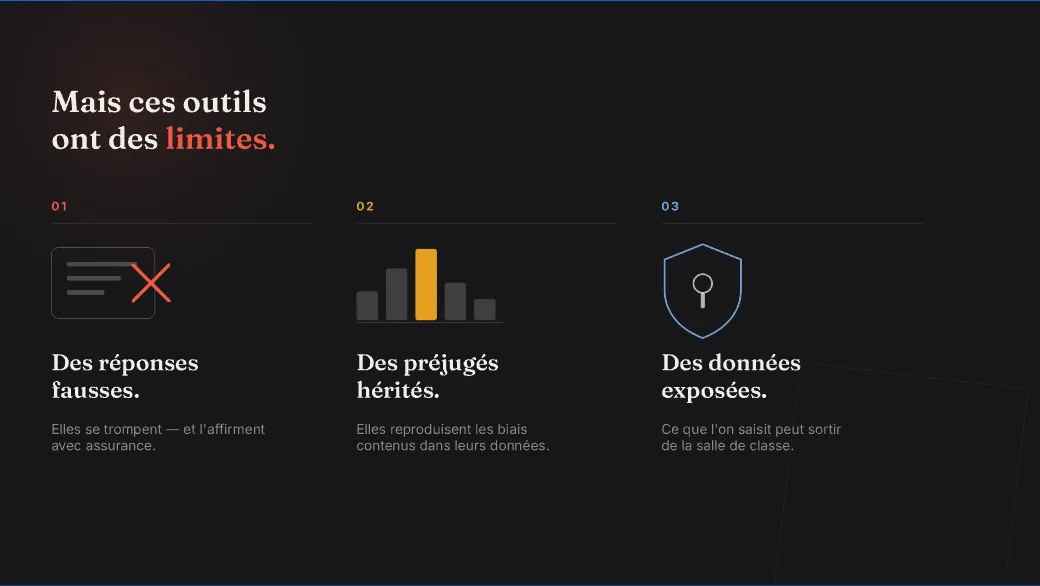
4. The turn. The palette flips to dark ink to mark the change in tone: wrong answers, inherited bias, exposed data.
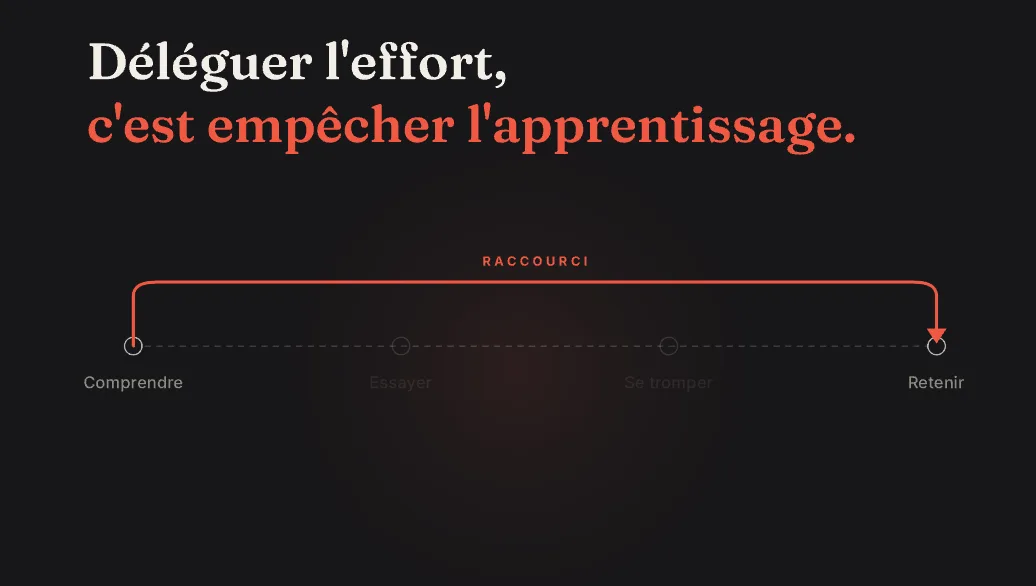
5. The deeper point. Delegating the effort skips the steps where learning actually happens.
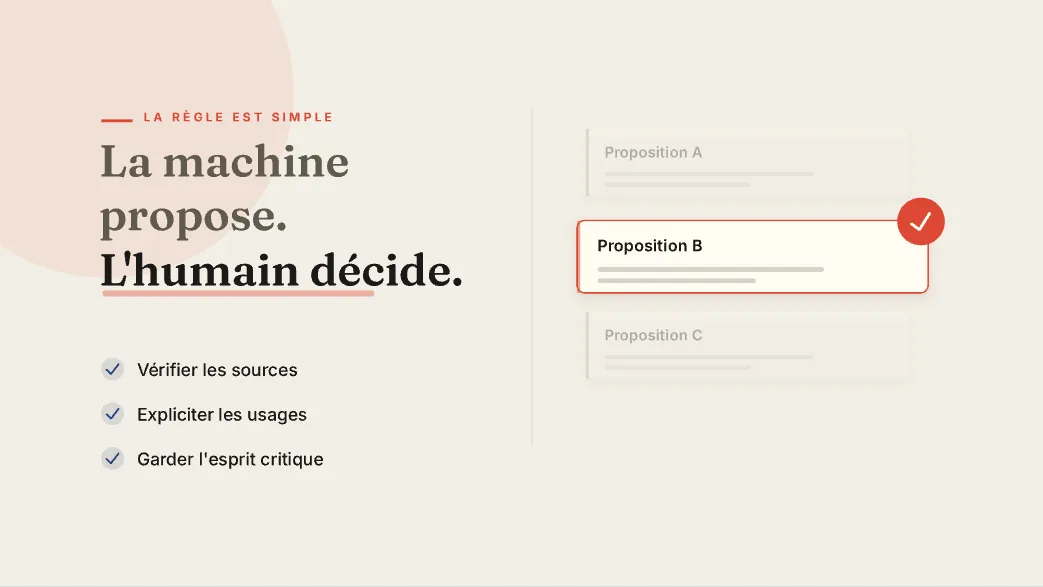
6. The takeaway. Back to paper for one memorable rule: the machine proposes, the human decides.
Step 6: Watch it through, then give specific notes
Watch the whole video once at full speed, the way your audience will, before changing anything. Then give specific notes. The more precise the note, the more precise the change:
- "The limits scene moves too fast to read the three risks. Hold each one for a beat longer."
- "The teachers scene has too much text on screen. Keep the headline and show the three uses as icons."
- "Use our brand blue instead of the ink blue."
The result isn't a flat video file. It's a project with every text, shape, image and the voiceover on its own layer, grouped by scene. This one has 188 named layers.
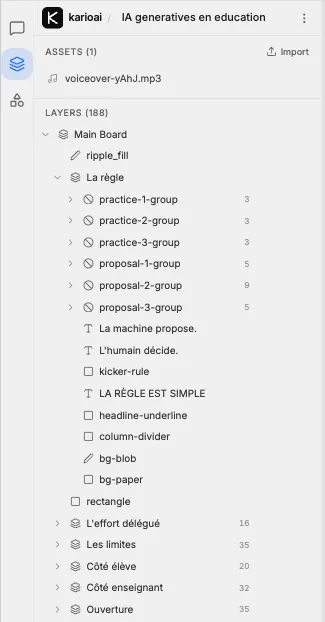
So there are two ways to apply notes. Use the chat for anything that touches several layers at once, like pacing, colours or a new line of narration. Edit directly for precise fixes: select a layer, change its text, drag it, or adjust position, opacity and keyframes in the right panel.
Step 7: Export and compare
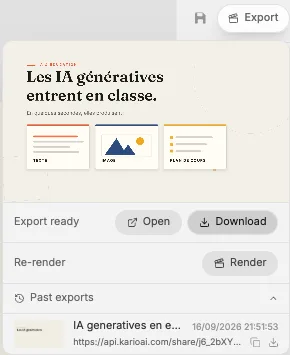
Click Export to render the video. You can download the MP4 or open it from a share link, and every past export stays in the list, so you can compare a revision against the previous cut before you share it.
Make your own explainer
Start your first video in Kario. Try it with a single video for $19.
Example project and screenshots from "Kario" by Bertrand Formet on Une IA par jour, licensed under CC BY.